Integrations: BTCore setup
Last updated: October 13, 2026
Follow this guide to setup Sonant's integration with BTCore.
1. Create a New External App
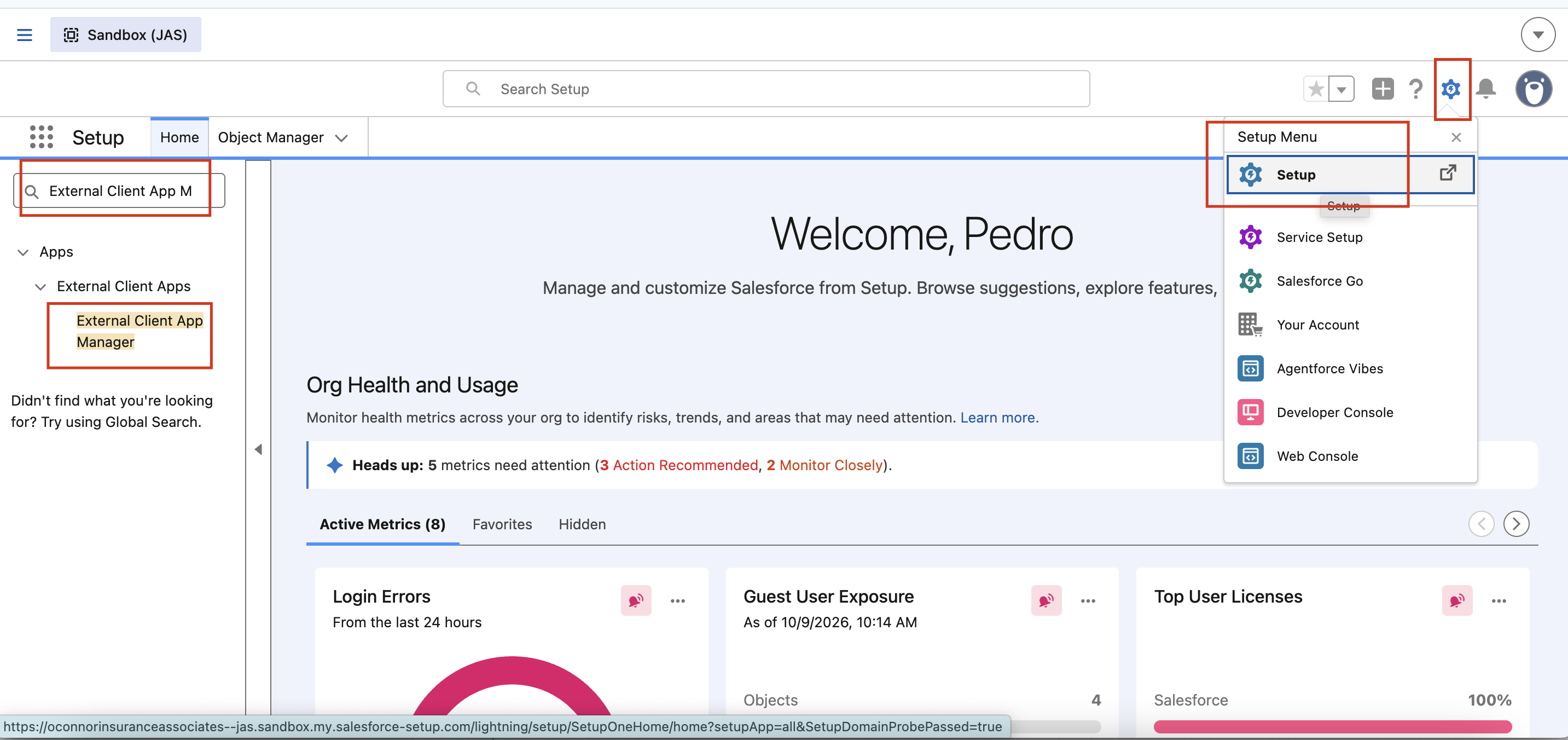
Select the gear and click Setup
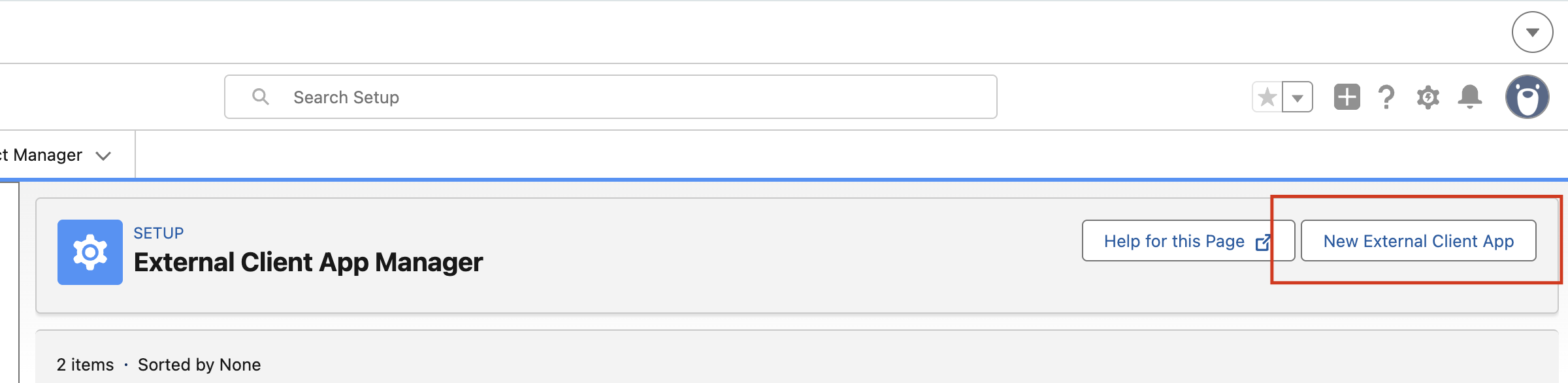
Click 'New External Client App'
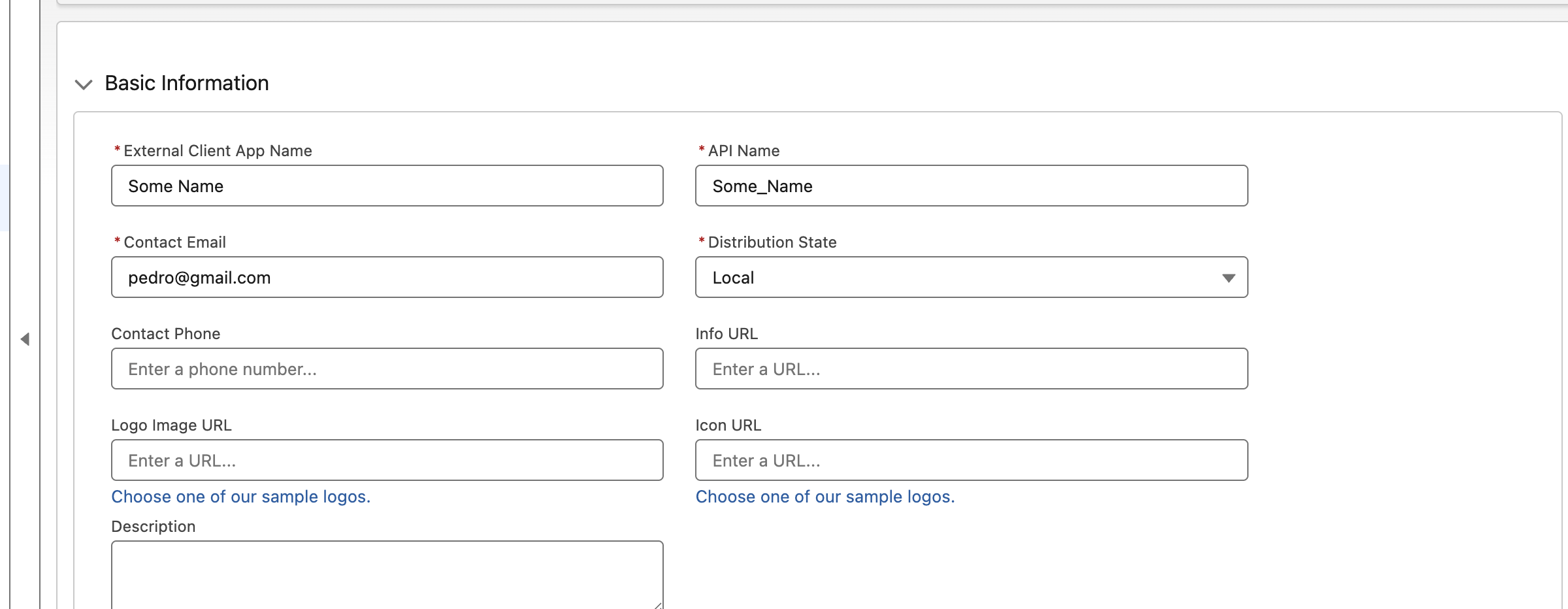
Fill in the 'External Client App Name' (choose one), API Name (choose one), Contact Email and set Distribution State to 'Local'
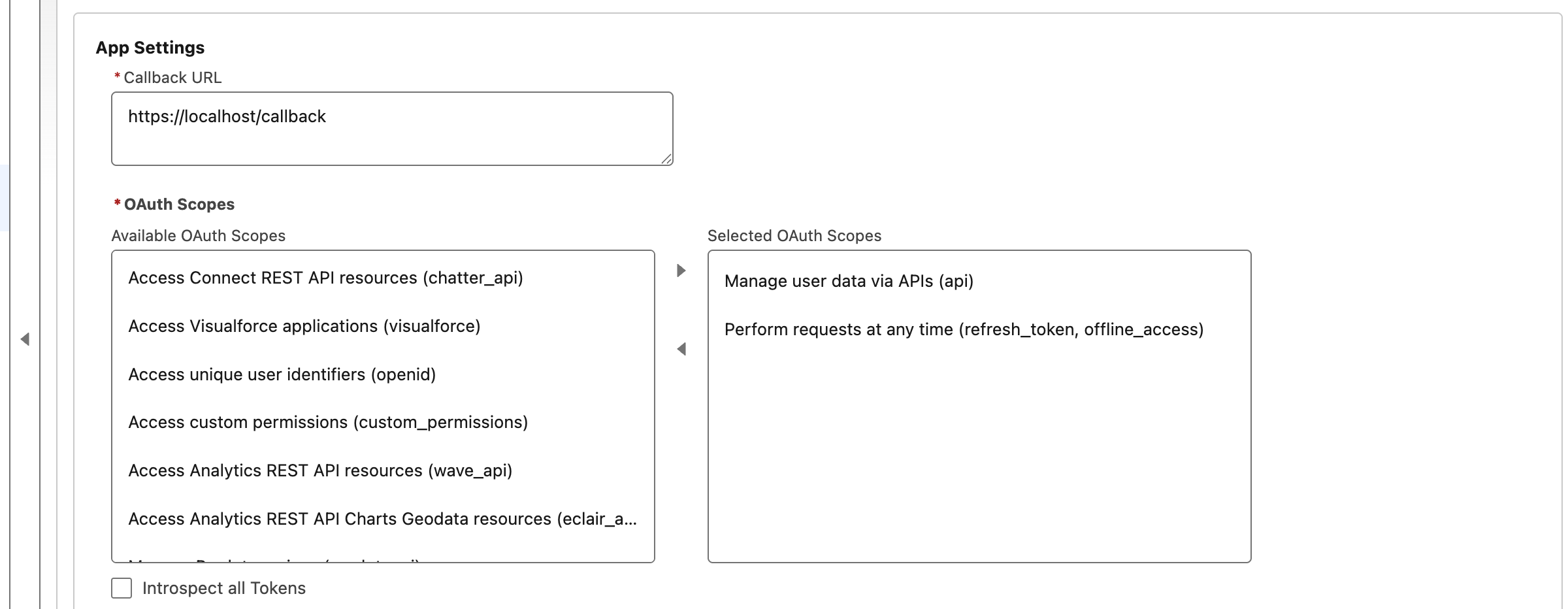
Expand App Settings and set the Callback URL to 'http://localhost/callback'. This is just a placeholder and will not be used, but BTCore makes it mandatory.
Select 2 OAuth Scopes (Manage user data via APIs (api) and Perform requests at any time (refresh_token, offline_access)
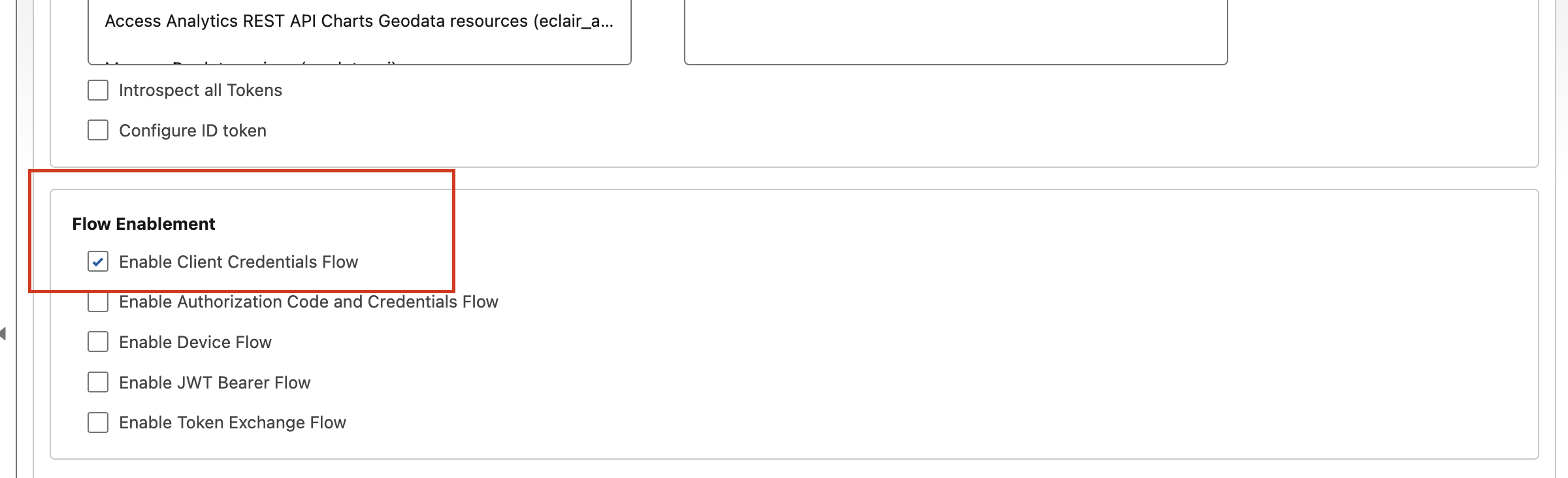
In the 'Flow Enablement' section, select 'Enable Client Credentials Flow'
Click Create
2. App is created - almost there!
Go to the App Policies tab
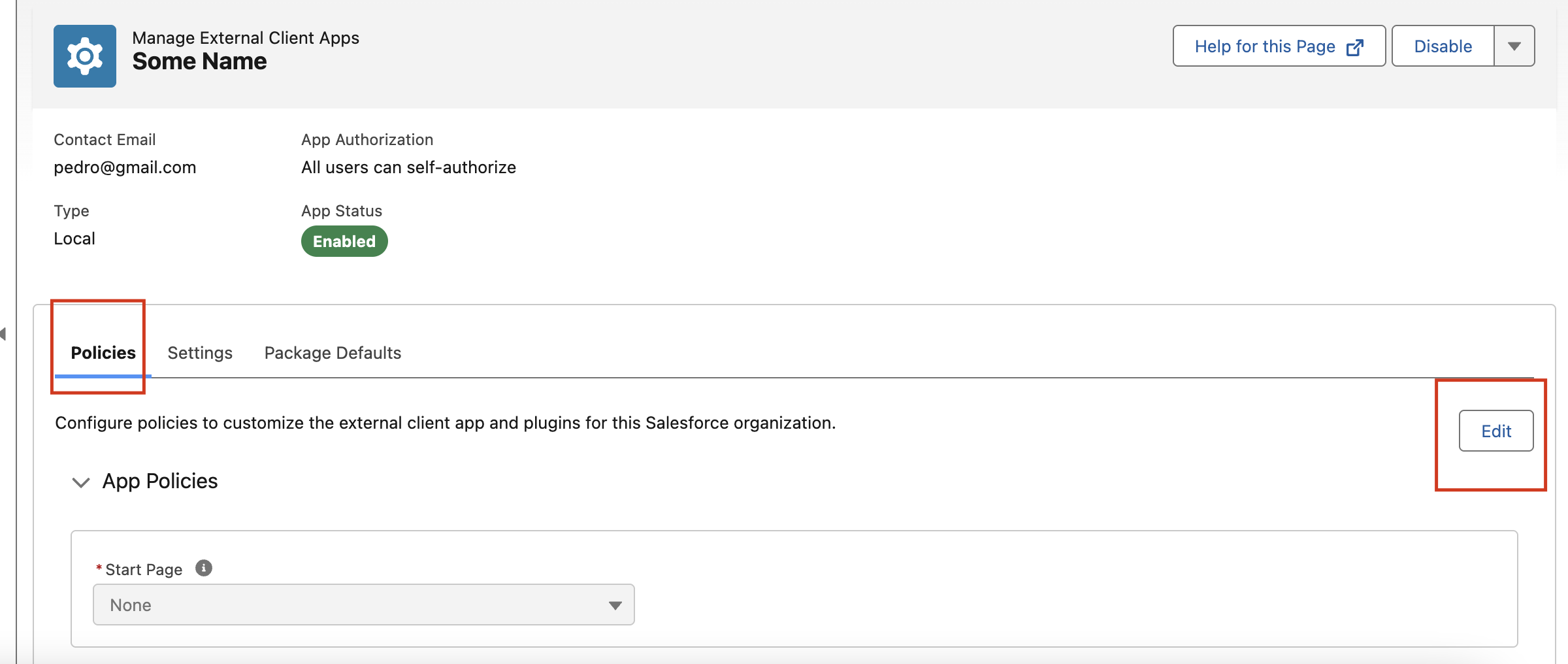
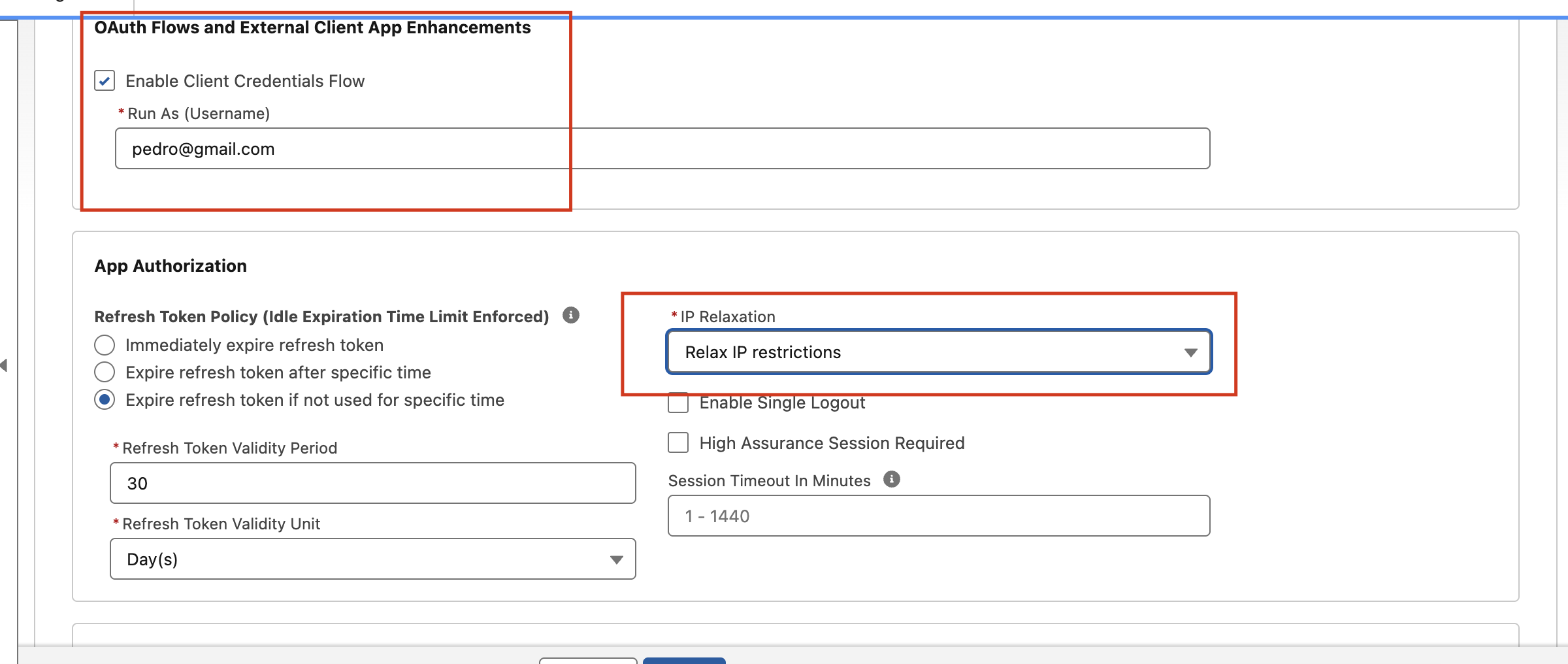
Go to the App Policies and in the 'OAuth Flows and External Client App Enhancements', enable the 'Enable Client Credentials Flow'. Also, fill in the 'Run as' with a valid organisation username.
In the 'IP Relaxation', select the 'Relax IP restrictions'
Click Save
3. Retrieve the credentials
Go to the Settings tab
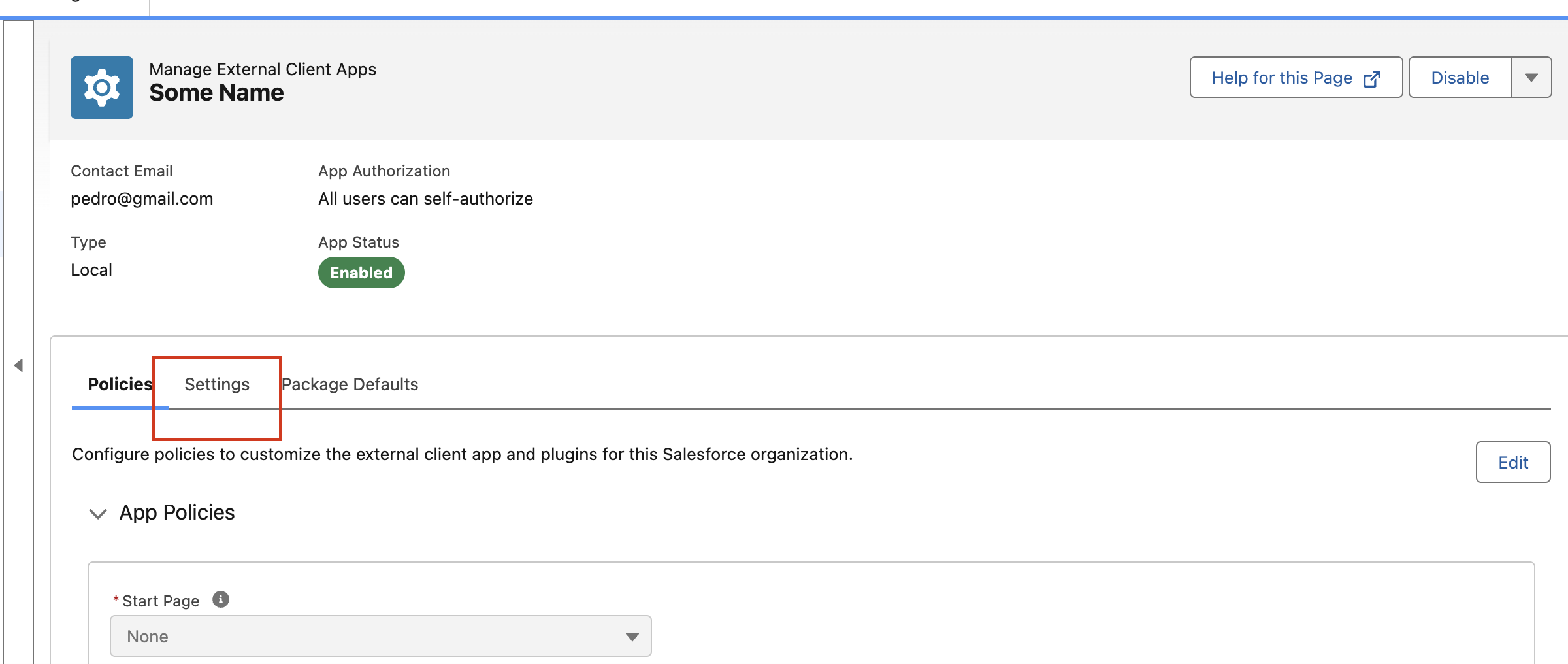
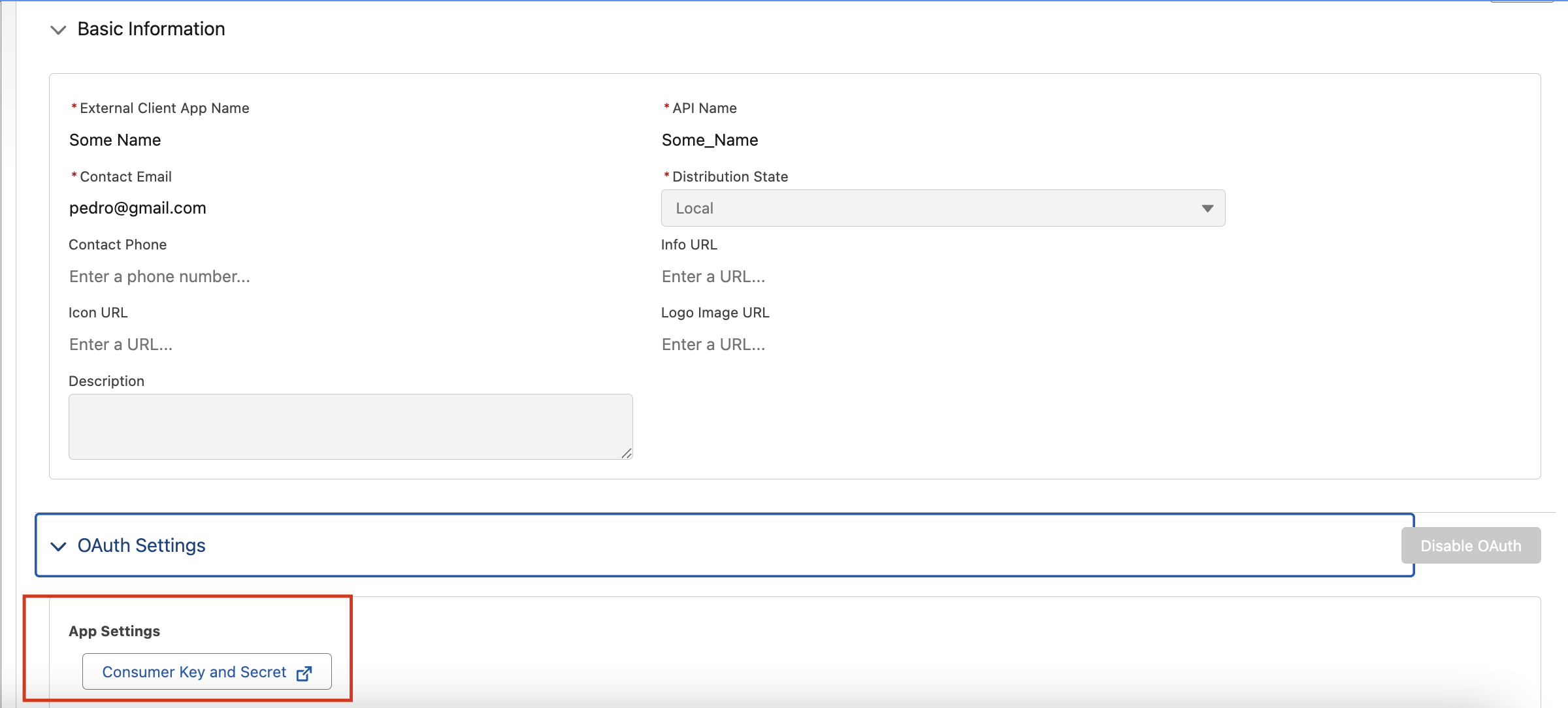
In the OAuth Settings, click the button 'Consumer key and Secret'
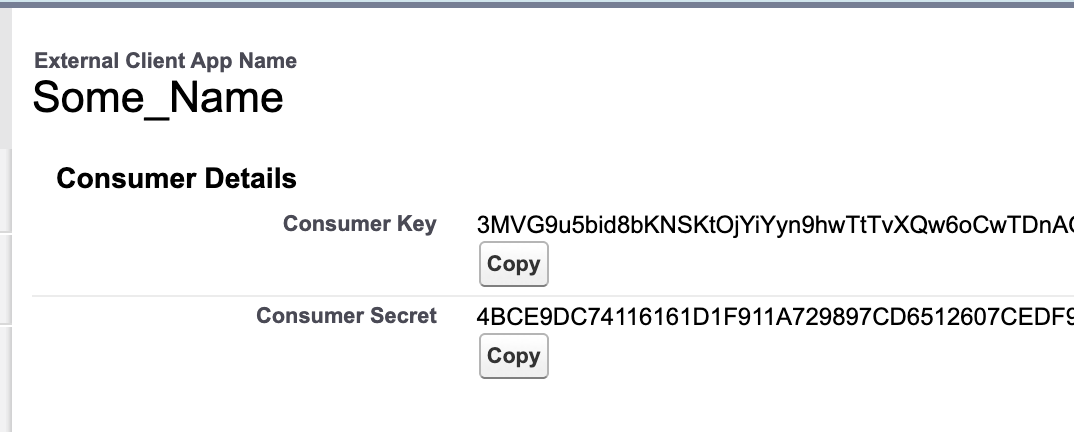
You'll be redirected to a page where you can find the Consumer Key and Consumer Secret. Copy and store these values.
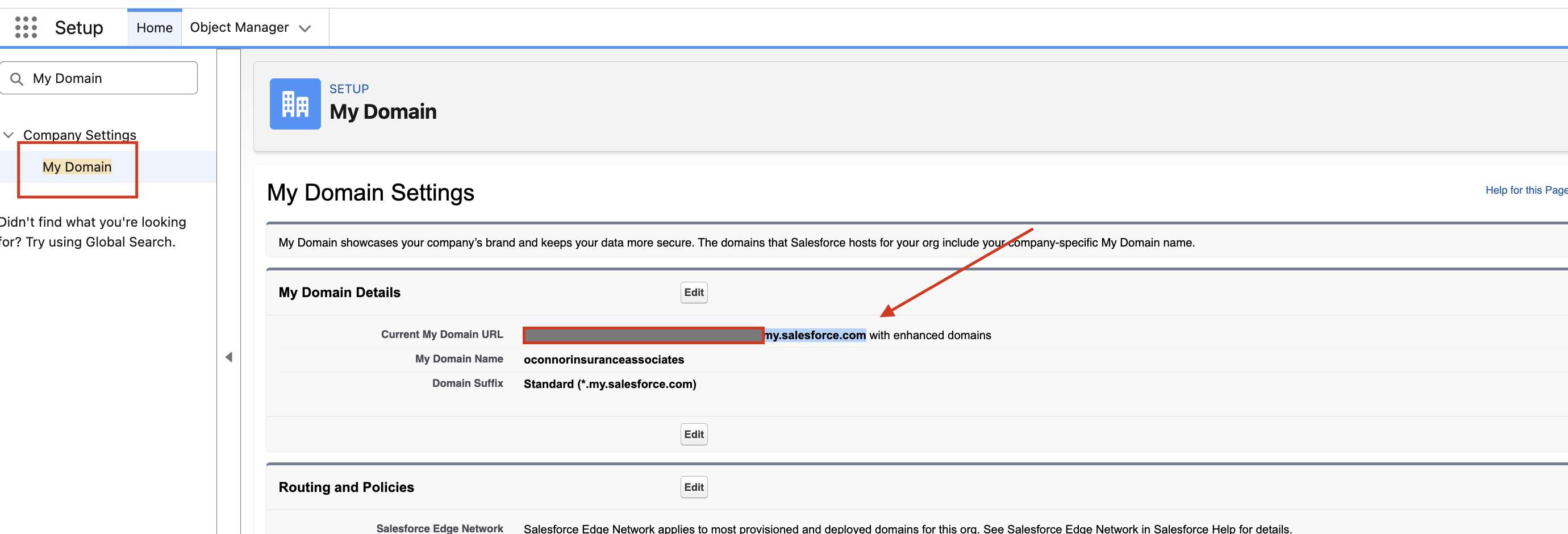
Retrieve your domain - Go to Setup, and search for 'My Domain'
Copy the URL after the 'Current My Domain URL'
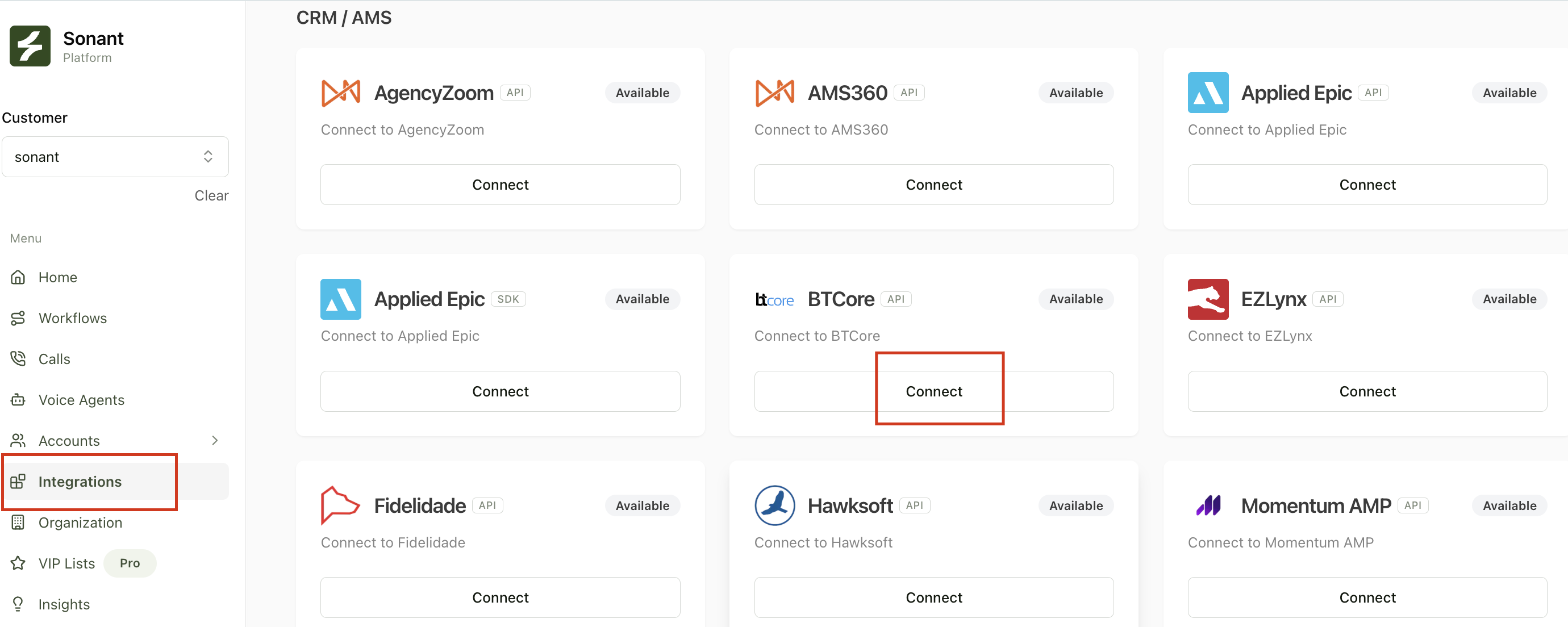
Go to Sonant -> Integrations and search for BTCore
Click Connect
Fill in the URL, Consumer Key and Consumer Secret
Click 'Connect Integration'
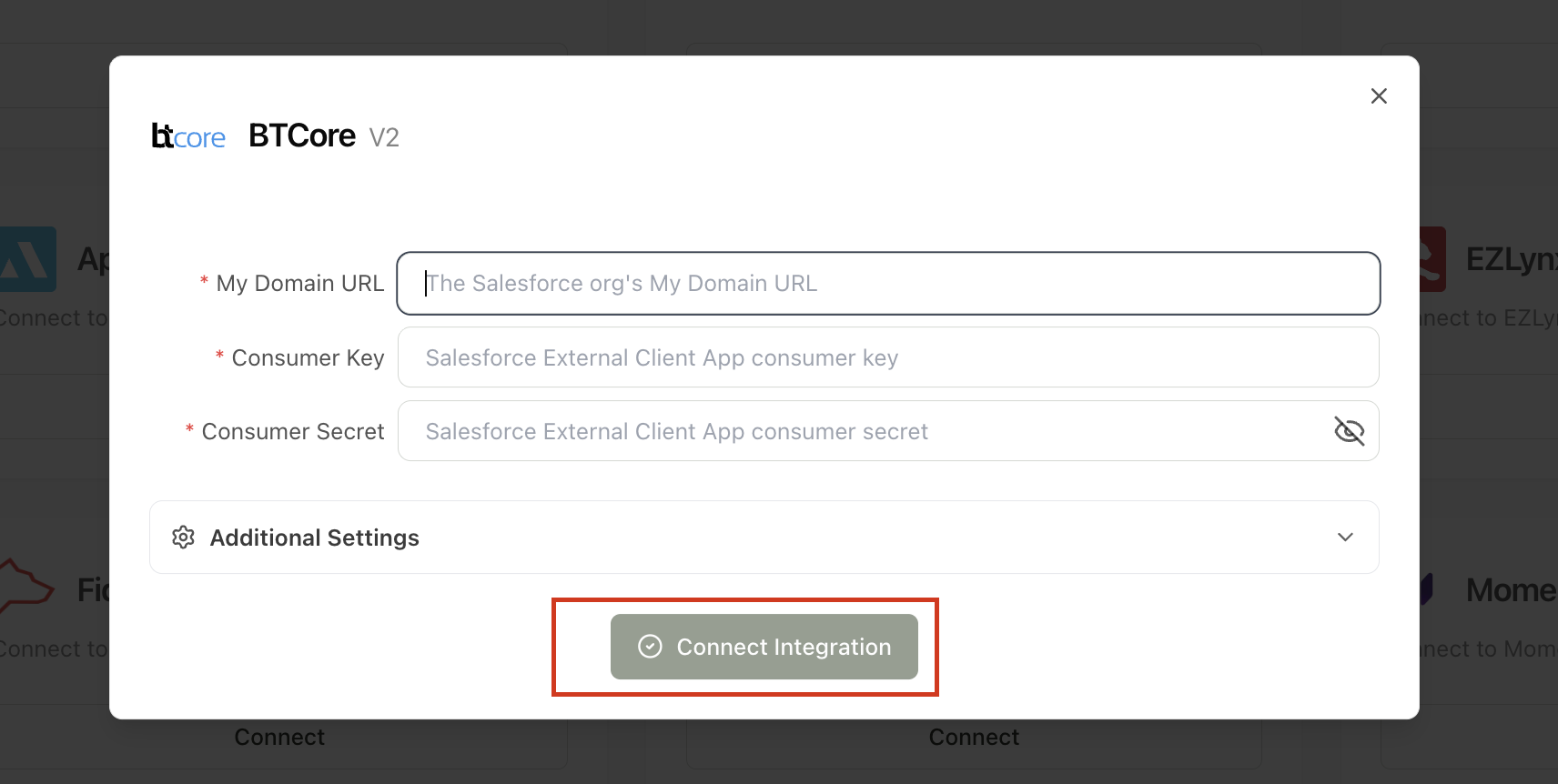
If the credentials are correct, your agency is now connected to BTCore.
If credentials are incorrect, an error will pop-up mentioning the authentication did not succeed.
For any questions or suggestions reach out to our team at support@sonant.ai.