Integrations: BTCore walkthrough
Last updated: October 13, 2026
This BTCore walkthrough shows the features available in the integration between BTCore (Salesforce) and Sonant. There are two main features: read data and push data.
Reading data starts as soon as the integration is connected. Pushing data (notes and tasks) starts once you set up a post-call action.
Read data
Sonant Agent knows your clients' details and their policy data.
Periodic sync
Sonant automatically syncs with BTCore on a regular schedule, picking up accounts that changed since the last sync: changes to the account itself, its contacts or its policies. This gives Sonant Agent context about the client who's calling as soon as the call starts. If the caller's phone number is already in Sonant's records, the Agent answers faster, which gives the client a better experience.
Sonant reads each BTCore client type as follows:
Person Accounts: the client themselves.
Business and Household accounts: the business or household itself, plus every person on its Contacts tab, with their role (e.g. Owner).
Retrieved client details
Name
Phone numbers (up to 4)
Email
Date of birth
Address
Client type (Personal for Person Accounts and Households, Commercial for Businesses)
Status
Producer
Account Executive
People on the account, with their role and title, and whether they are the Policy, Billing, COI or Underwriting contact
Business details such as DBA, industry and website
Retrieved policy details
Policy number and name
Description
Status
Type and line of business
Effective, expiration and cancellation dates
Premium and billing method
Carrier and writing company
Producer and Account Executive
Insured address
Renewal details
Push data
Automatic Note Creation after calls
When a call ends and the client is in BTCore, Sonant Agent can automatically:
Create a Note on the client's account with the call details. It appears in the account's Notes list.
Create a Task (an open to-do) on the client's account. It appears in the account's Activity panel, under Upcoming & Overdue.
Set up note and task creation
On your agent overview page, open Post Call Actions.
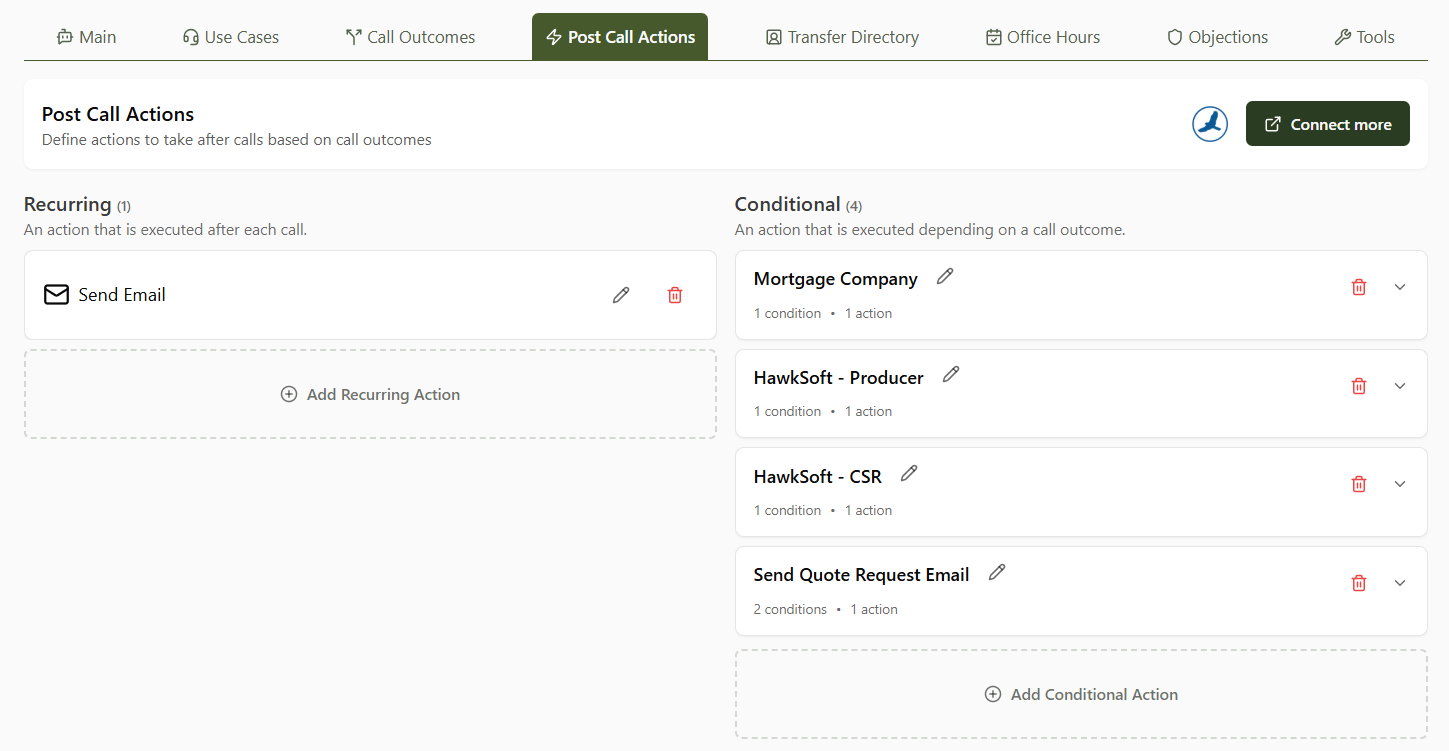
Click "Add Recurring Action" or "Add Conditional Action", depending on whether you want Sonant to push to BTCore after every call (Recurring Action) or only after certain calls (Conditional Action).
If you choose "Add Conditional Action", you also specify which conditions trigger it (e.g. only create a note if the type of call is "quote request"), the same way you do for email notifications (guide here: FAQ: Edit Email Notifications). Recurring Actions don't need conditions.
When creating the action, select "Create Note" or "Create Task".
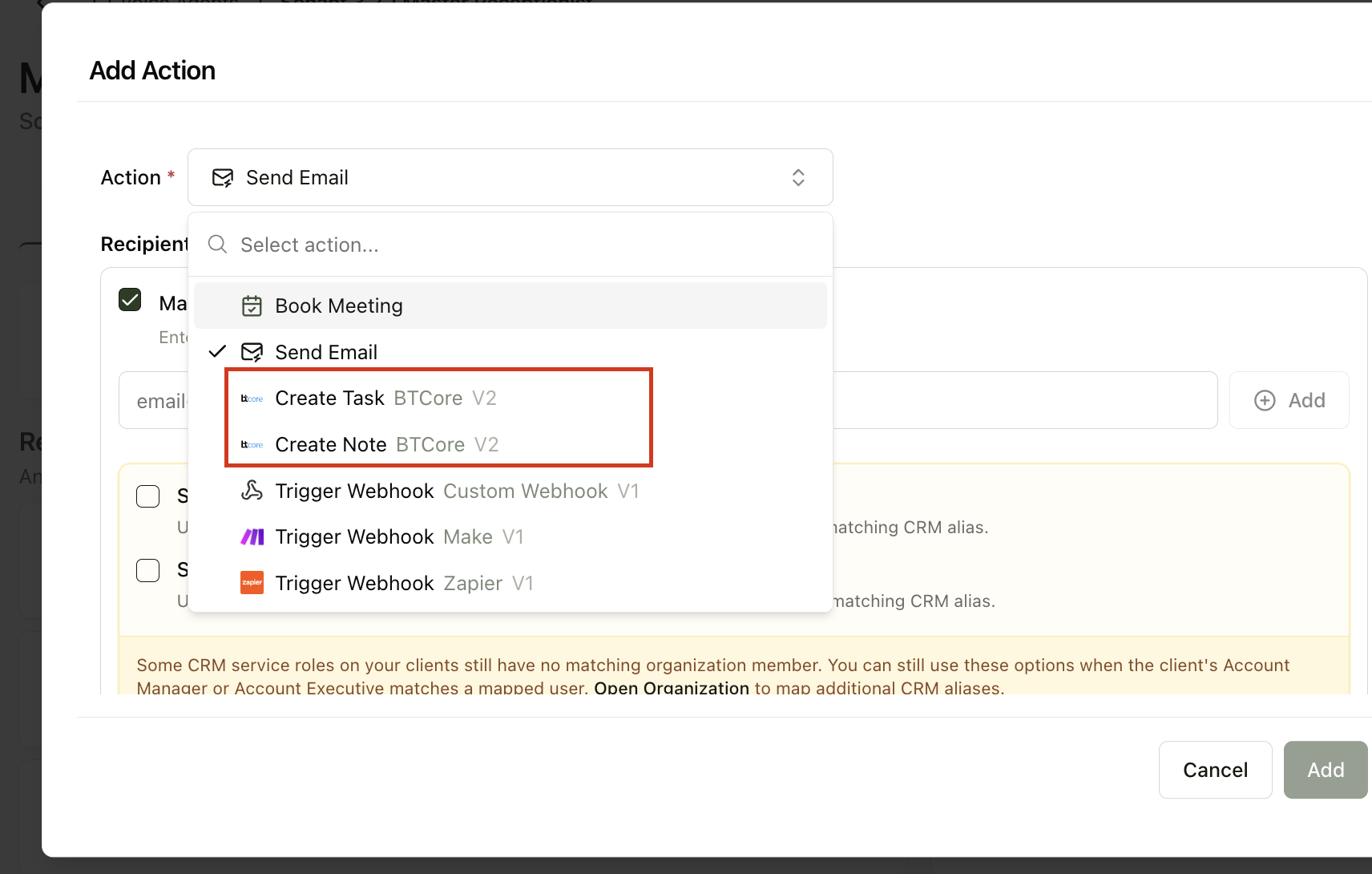
Personalize the details:
For a note:
Note title, e.g. "Sonant AI call"
Note content, e.g. "Sonant AI Type of Call: {call_extracted_info.type_of_call}; Call outcome: {call_extracted_info.call_outcome}; Call Summary: {call_extracted_info.summary}"
For a task:
Task subject, e.g. "Sonant AI follow-up"
Task description, e.g. "Sonant AI Type of Call: {call_extracted_info.type_of_call}; Call Summary: {call_extracted_info.summary}"
Assignee (optional): the Salesforce user ID of who should receive the task, starting with 005. If left empty, the task goes to the integration's user.
Task due in X hours (optional): when the task is due.
Click "Save changes".
Note for Person Accounts: on some BTCore setups, the Person Account page's Notes tab only shows custom notes, so standard Salesforce Notes (including ones created with the "New Note" button) don't appear there. If that's your case, ask your Salesforce admin to add the standard Notes related list to the Person Account page.
For any questions or suggestions, reach out to our team at support@sonant.ai.